
Construction geometry
What you’ll make: a rectangle with two construction diagonals, to find its centre, the way you’d use guide lines on a drawing board.
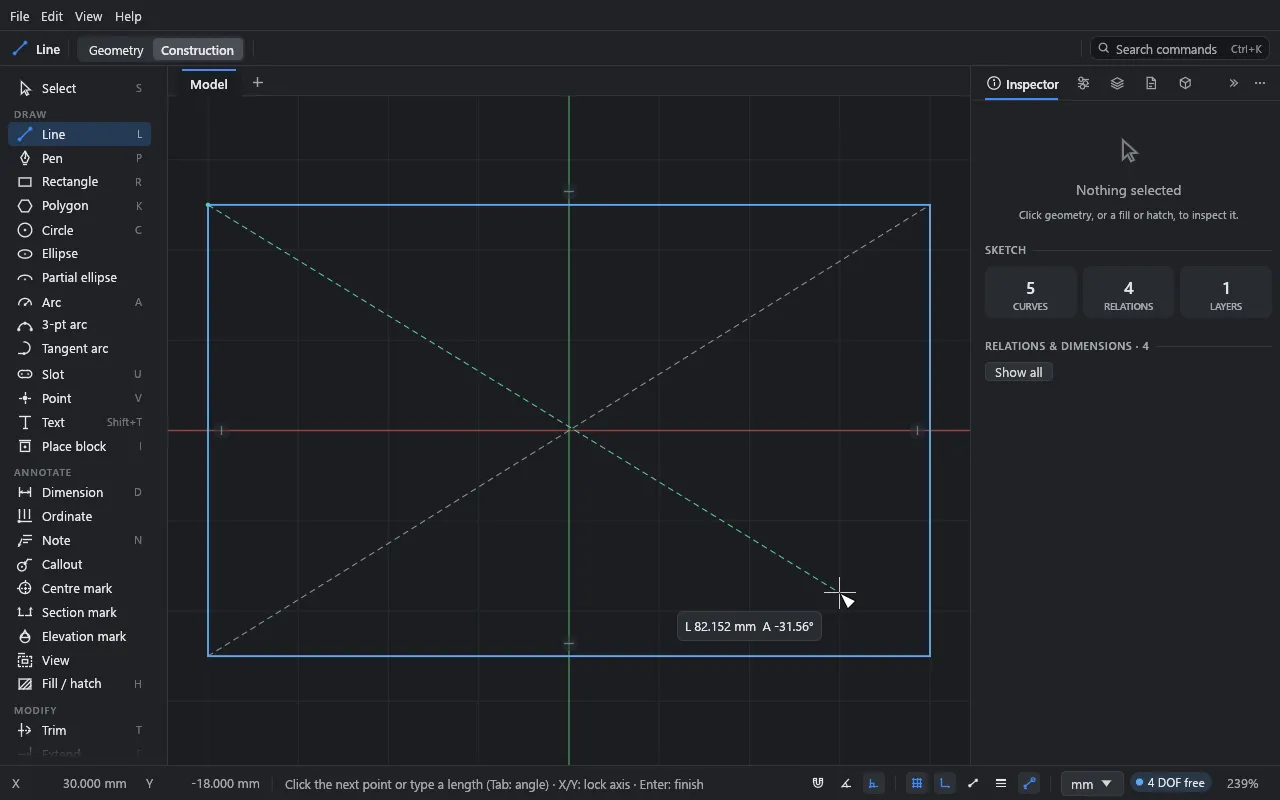
Time: about 5 minutes.
What construction geometry is
Construction geometry is a guide. It’s drawn thin and dashed, it can carry relations and dimensions like anything else, and you can snap to it. But it:
- never prints or exports,
- doesn’t close areas, so fills and hatches ignore it,
- has no line weight.
Use it for centre lines, reference circles (a bolt circle), layout grids and anything else that positions the real geometry. The example plate’s bolt circle is construction geometry.
1. Draw construction lines
- Draw a rectangle (R and two clicks).
- Press L for the Line tool.
- Press Alt+C. The top bar switches from Geometry to Construction. (You can also click Construction there.)
- Click one corner of the rectangle, then the opposite corner. Press Esc.
- Draw the other diagonal the same way.
The choice stays with you: every drawing tool (line, rectangle, circle, arc, slot, polygon, pen and so on) draws construction until you switch back with Alt+C or Geometry. It carries on across tools and into other files.
2. Use them
Each diagonal’s midpoint is the rectangle’s centre.
- Press Alt+C to switch back to Geometry.
- Press C and move the pointer to the middle of a diagonal. It snaps to the midpoint.
- Click, then click again (or type a diameter and press Enter) to finish the circle.
With Auto relations on, the circle’s centre gets a Midpoint relation to the diagonal, so the circle stays in the middle when the rectangle changes size.
3. Turn existing geometry into construction
- Pick the curves with the Select tool.
- Press Alt+C, or click Construction in the top bar.
Press Alt+C again to turn them back.
The Inspector’s Appearance section has the same choice for picked curves, with a third option: Geometry, Construction or Centre line. A centre line prints (as a chain line) but, like construction, doesn’t close areas.
What you learned
- Alt+C switches a drawing tool between drawing geometry and construction.
- With the Select tool, Alt+C turns picked curves into construction and back.
- Construction geometry guides and constrains, but never prints and never closes an area.