
Getting started
This page gets Drift running, shows you round the window, and covers the things you’ll do in every session: navigating, finding commands and saving.
Install Drift
Drift is in beta, and its builds aren’t signed yet. Your computer will warn you the first time you open one.
Windows
Download from the Releases page:
Drift-<version>-windows-x64-setup.exe, the installer. It installs for your user only (no administrator rights needed), adds Drift to the Start menu, can add a desktop icon, and can make.driftfiles open in Drift.Drift-<version>-windows-x64.zip, the portable version. Unpack it anywhere and rundrift.exe.
If Windows SmartScreen says it protected your PC, click More info, then Run anyway.
macOS
Download Drift-<version>-macos-universal.dmg from the
Releases page. It runs on Apple silicon and
Intel Macs. Open the disk image and drag Drift to Applications.
The first time, macOS Gatekeeper may refuse to open it. Right-click (or Control-click) Drift in Applications and choose Open, then Open again. On recent macOS versions you may need System Settings → Privacy & Security → Open Anyway instead.
Double-clicking a .drift file doesn’t open it in Drift on macOS yet. Use File → Open…,
or drop the file on Drift’s window.
Linux
There is no Linux package yet. Build from source with the Rust toolchain from rustup.rs:
cargo run -p drift --releaseIn the browser
Open https://chrisplange.github.io/Drift/. It’s the same program, built from the latest
code on main, so it may be ahead of the installers. It uses WebGPU where the browser has
it, and WebGL2 otherwise.
In the browser:
- Save downloads the file, and Open asks you to pick one.
- Your sketch is kept in the browser’s storage between visits.
- Fonts installed on your computer aren’t available. Use Add a font file… in a font menu instead.
Updating
Drift updates itself. When it starts it asks GitHub whether there is a newer release. If there is, a notice at the bottom right shows what’s new, with three choices:
- Update now downloads the new version and checks it (see below). Drift then closes, installs it and opens again. If your sketch has unsaved changes you’re asked to save first. Cancel there keeps the download, and Help → Restart to update installs it later.
- Later hides the notice until Drift next starts.
- Skip this version stops it being offered. A newer one still is, and Help → Check for updates… shows a skipped one again.
To check at any time, use Help → Check for updates…. To stop the check at start, turn
off Edit → Preferences → Updates → Check for updates when Drift starts. The check only
asks GitHub (api.github.com) for the list of Drift releases. Nothing about you or your
drawings is sent.
Before anything runs, Drift checks the download against the release’s checksums. It also checks that those checksums are signed with Drift’s release key, which is built into the app. A download that fails either check is never run.
- Windows: this works if you used the installer. The update installs the same way as before, without asking questions. If Drift was installed for all users, Windows asks for administrator approval. With the portable zip, the notice links to the release page and you update by hand.
- macOS: Drift replaces itself in the folder it’s in (usually Applications). If it can’t write there, it says so and you update by hand from the disk image. Updates downloaded this way don’t trigger the Gatekeeper warning again.
- Linux and the browser: the browser version is always the latest. On Linux, pull and rebuild.
If the check fails (no connection, or GitHub is busy), the status bar says so briefly and nothing else happens.
The start screen
Drift opens with a start panel over an empty sketch.
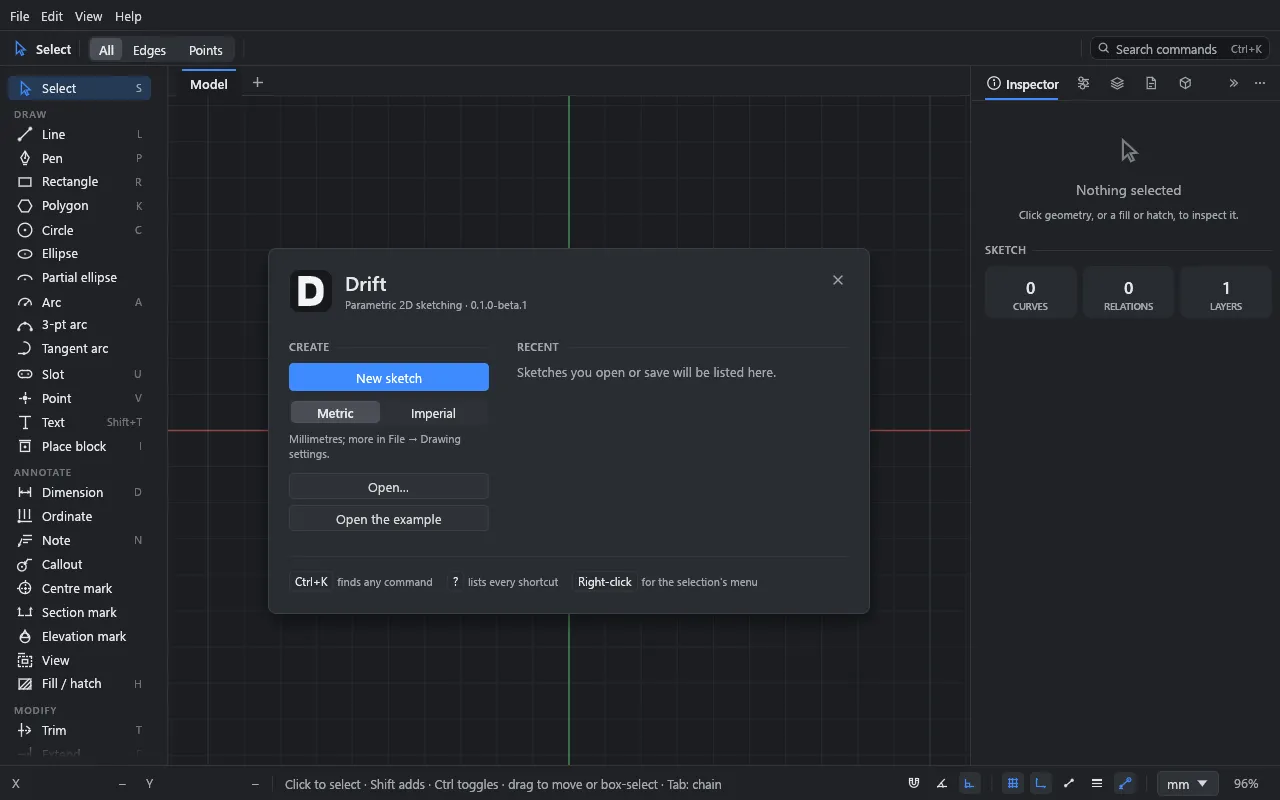
- New sketch closes the panel. Pick a tool and start drawing.
- Open… opens a
.driftfile. (To bring in a DXF or PDF, see Underlays and DXF import.) - Open the example opens a dimensioned mounting plate to explore.
- Recent lists the sketches you’ve opened or saved. File → Open recent keeps ten.
The panel also goes as soon as you pick a tool or click the canvas. To see it again, use Edit → Preferences… → General → Show the start panel.
Drift restores your last session when it starts, so after the first run you’ll usually see your previous sketch instead.
Open the example
Click Open the example (or File → Open example). You get a mounting plate: an outline with rounded corners, a slot, a bore and four bolt holes, fully dimensioned.
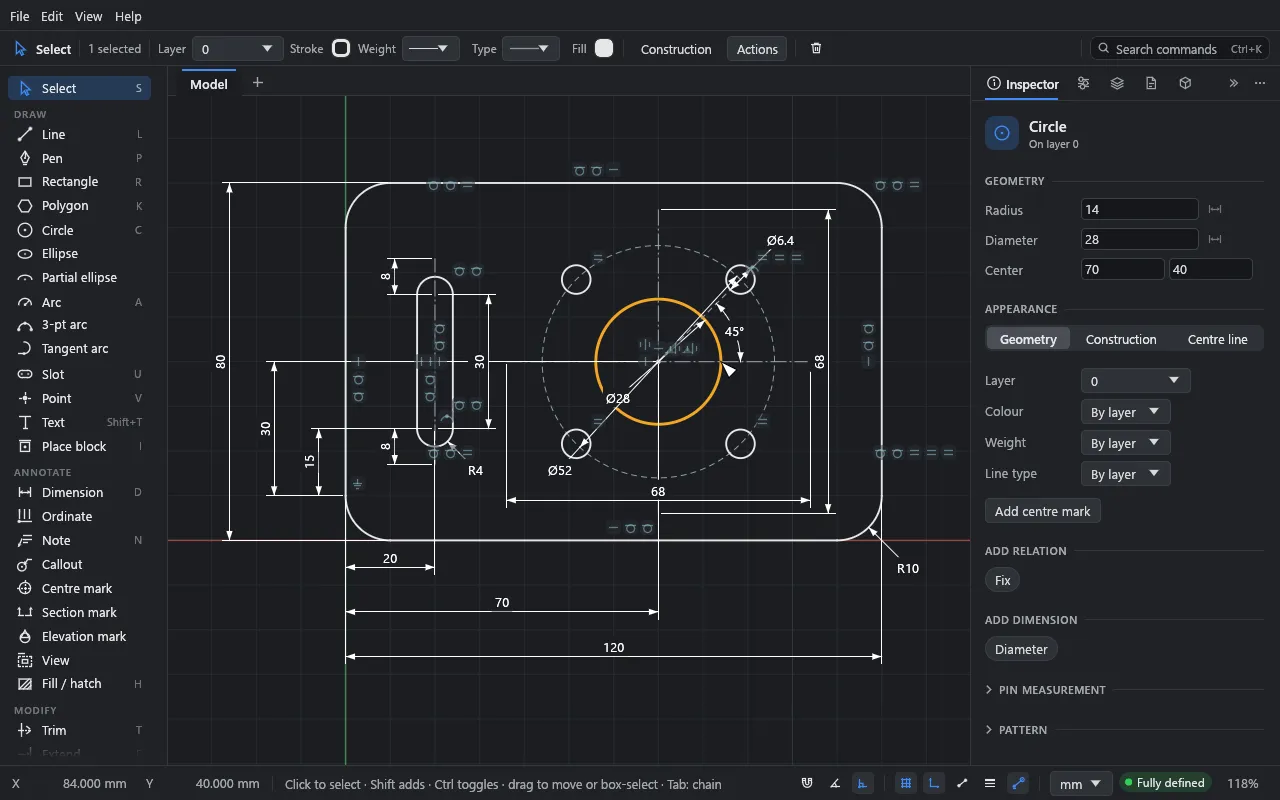
The window has five parts:
- The tool palette (left). Select at the top, then Draw, Annotate and Modify tools. Each shows its shortcut letter. Hover over a tool for a description. If the window is short, the list scrolls.
- The top bar. On the left, the active tool and its options. With Select and something picked, it shows the selection’s Layer, Stroke (colour, weight, line type), Fill, a Construction button, an Actions menu and Delete. On the right is the Search commands field.
- The canvas (middle). Geometry, dimensions and relation symbols. The green and red lines are the Y and X axes through the origin.
- The panels (right). Inspector, Parameters, Layers, Sheets and Blocks, docked as tabs. Click a tab’s icon to switch.
- The status bar (bottom). Pointer coordinates on the left, the active tool’s hint in the middle, and on the right: display toggles (grid, origin axes, snap to grid, angle snap, thin lines and others), the units menu, the sketch’s status, and the zoom.
Click the bore (the large circle) with the Select tool. The Inspector shows its radius, diameter and centre as fields you can type into, its appearance, and the relations and dimensions you can add to it.
Colours on the canvas
By default curves are coloured by how well they are defined, as in SolidWorks:
| Colour | Meaning |
|---|---|
| Blue | Under-defined: it can still move. |
| White (black in the light theme) | Fully defined. |
| Red | Over-defined or conflicting. |
| Orange | Picked. |
The status bar says the same in words: Fully defined, N DOF free or N conflicting. Shift+C switches to each curve’s own and its layer’s colours, for a drawing that looks like the printout.
Panels
You can rearrange the panels:
- Drag a tab along its bar to reorder the tabs, onto the canvas to float the panel, or onto the other side’s tabs to dock it there.
- Drag a floating panel’s header onto the top or bottom of another floating panel to stack them in one window, as in Photoshop or Affinity.
- Right-click a tab, or use its ⋯ menu, to dock, float or close it.
- The » button collapses a dock to a narrow strip of icons.
- Ctrl+\ hides every panel for a clear view, and brings them back.
- View → Panels shows or hides each one, and Reset panel layout puts them all back in the right dock.
Ctrl+L shows or hides the Layers panel on its own.
Navigate
| To | Do this |
|---|---|
| Zoom | Scroll the mouse wheel (it zooms at the pointer), or pinch on a trackpad. |
| Pan | Drag with the middle or right mouse button, or scroll with two fingers on a trackpad. |
| Fit everything | Shift+F, or double-click the middle button. |
| Fit the selection | Shift+Z. |
| Zoom to a set size | Click the zoom percentage in the status bar: fit, selection, 25% to 400%, and 100% (life size). |
Drift tells a mouse wheel from a trackpad by how it scrolls. If it guesses wrong (a free-spinning wheel, or a touch mouse), set Edit → Preferences… → Mouse and trackpad → Scrolling to Zoom or Pan. With Pan, Ctrl+scroll zooms.
Ctrl+’ hides or shows the grid.
Find any command: the command palette
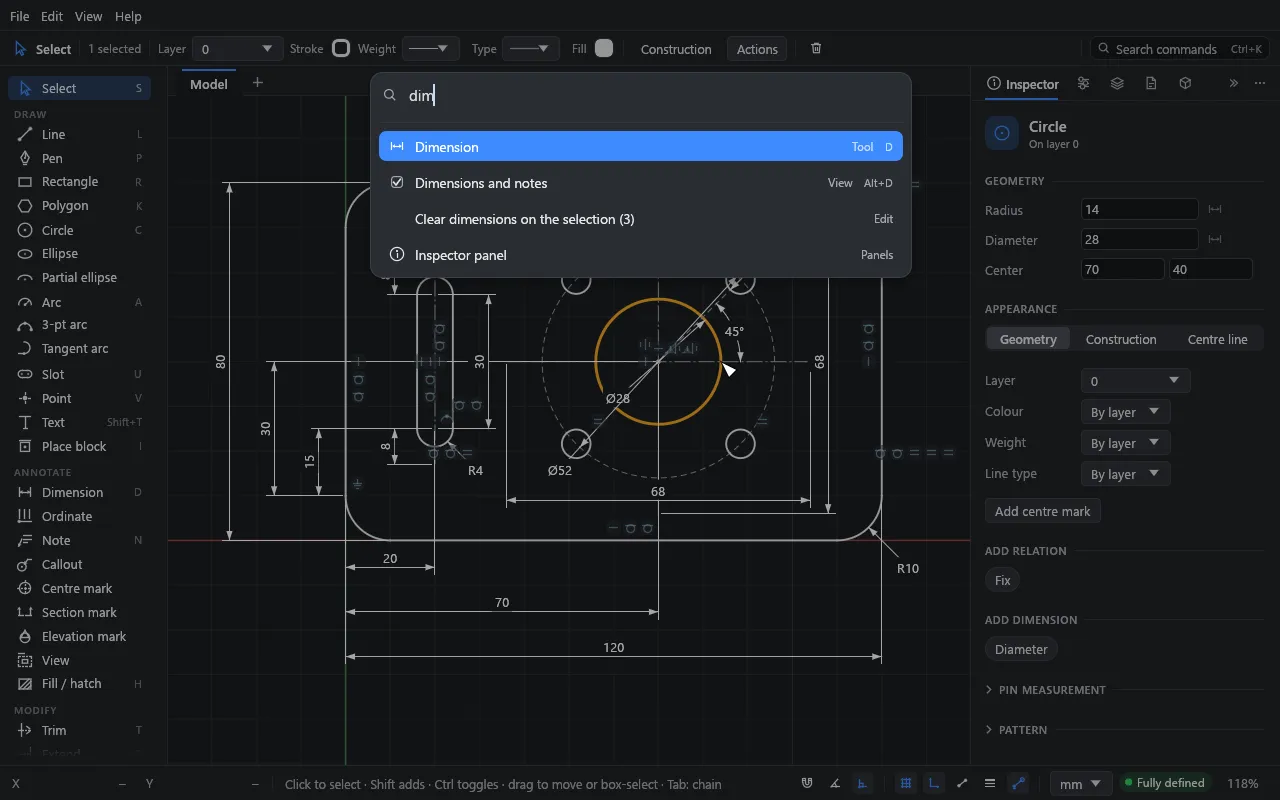
Press Ctrl+K (or Ctrl+Shift+P), or click Search commands in the top bar. Type a few letters of any tool, view setting, panel or command, and press Enter. Arrow keys move through the list and Esc closes it. Commands you’ve used recently come first.
Keyboard shortcuts
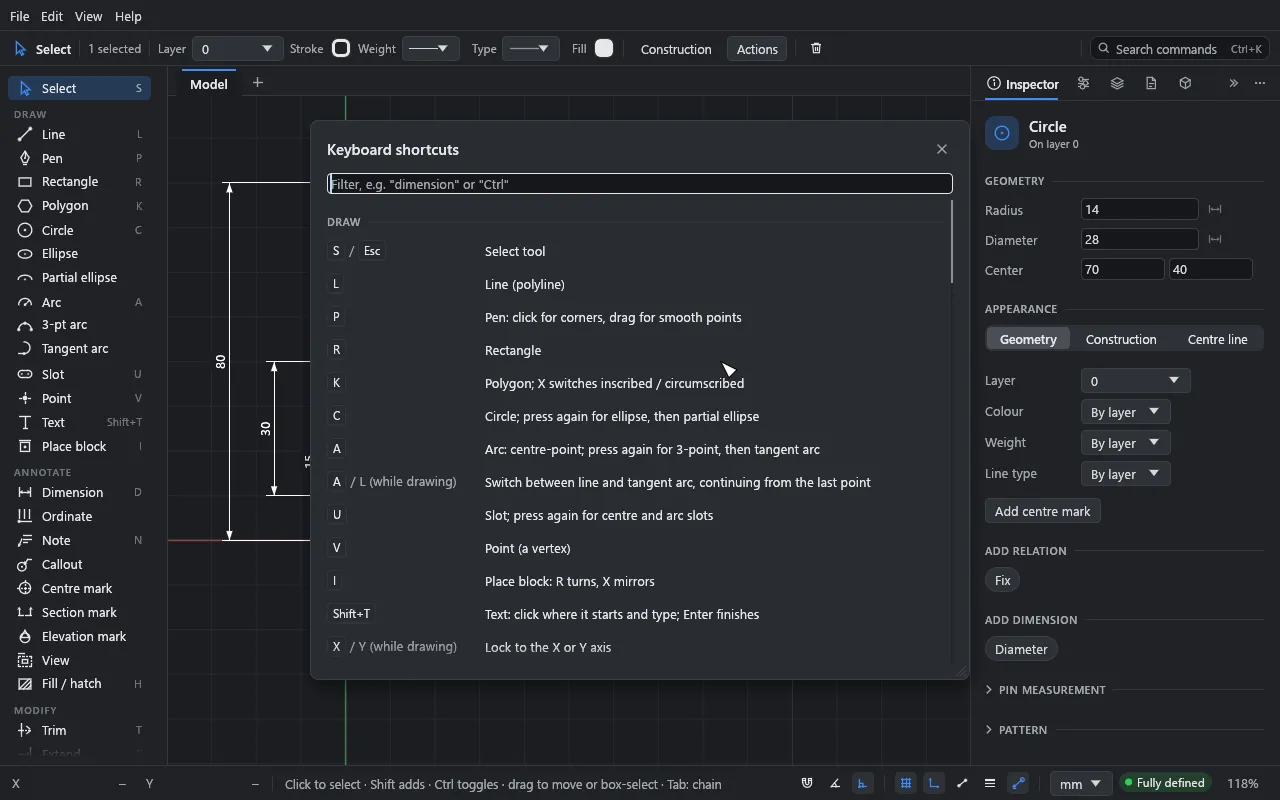
Press ? (or Help → Keyboard shortcuts) for the full list. Type in its filter field to find a key or a command.
The essentials:
- Each tool has a letter: L line, R rectangle, C circle, A arc, D dimension, T trim, and so on. Pressing C, A, U or F again cycles through related tools.
- Esc cancels what you’re doing. Pressed again, it returns to the Select tool.
- Enter or a right-click finishes a polyline.
- Ctrl+Z undoes and Ctrl+Y (or Ctrl+Shift+Z) redoes. Every edit can be undone, and a drag is one step.
On a Mac, use Cmd wherever this guide says Ctrl, and Option wherever it says Alt. The menus show the Mac symbols (⌘, ⇧).
See Keyboard shortcuts for every key.
Right-click menu
With the Select tool, right-click on the canvas. With something under the pointer or picked, the menu has edit actions, Add relation and Add dimension submenus, Move to layer, Select chain and more. On empty canvas it has select all, zoom to fit, the grid and snap switches, and the command palette.
Save your work
- Ctrl+S saves and Ctrl+Shift+S saves as. Drift saves
.driftfiles. - Ctrl+N starts a new sketch and Ctrl+O opens one.
- Drift asks before closing, or before replacing the sketch, when there are unsaved changes.
- The session is saved automatically every few seconds and when you quit, and restored when you start Drift again. That’s a safety net, not a substitute for saving.
- Exporting a PDF, SVG or DXF never replaces your
.driftfile. Ctrl+S always writes the sketch.
Compatibility. Drift’s file format changes as features are added, and a file saved by a newer build won’t open in an older one (Drift says the file is too new). Older files always open in newer builds. See Files and compatibility.
If something goes wrong
- Help → About Drift → Copy details copies the version, renderer and system for a bug report.
- Drift watches its own memory use. It warns at 3 GB and closes itself at 8 GB, so a fault can’t freeze the computer. Your sketch is restored the next time it starts.
Next
Start the first tutorial: Your first sketch.