
Parameters
What you’ll make: a panel whose width is a named variable, width, and whose height is
always half of it. You’ll save two variants, Wide and Narrow, and switch between them.
Time: about 10 minutes.
Before you start
You need a rectangle with its width and height dimensioned and one corner fixed. Use the one from Constraints and dimensions, or draw a new one: R and two clicks, then D on the bottom and on one side, then pick a corner and Fix it.
1. Add a variable
- Open the Parameters panel: click its tab (the sliders icon) beside Inspector.
- Under Variables, type
widthin the name field and100in the value or expression field. - Leave the kind on Length and click Add (or press Enter).
The variable appears with its value and a slider. The kind can be Length, Angle or Number; mixing kinds wrongly (adding a length to an angle) is an error with a plain message.
2. Link dimensions to it
- Double-click the width dimension on the canvas.
- Type
widthand press Enter. - Double-click the height dimension, type
width / 2and press Enter.
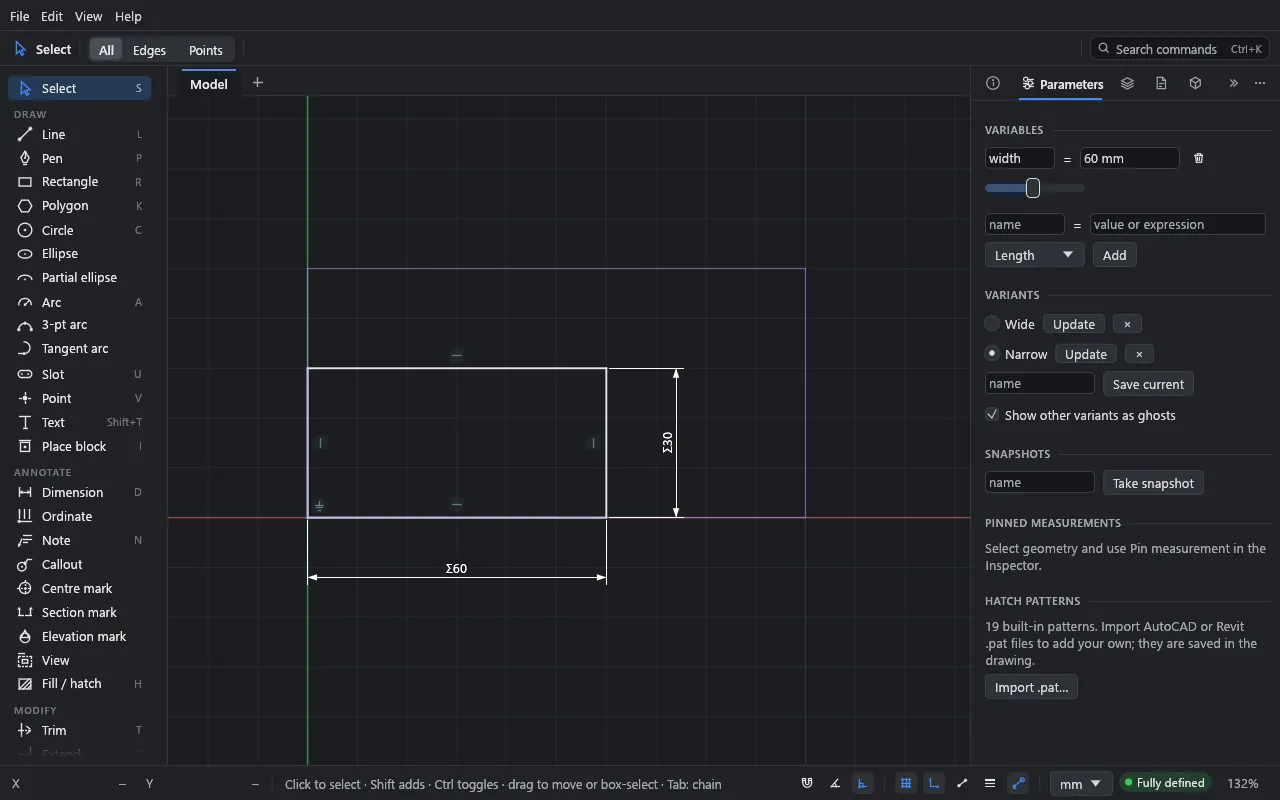
Linked dimensions show Σ before their value. Their text is the expression, so
double-clicking one shows width / 2 again.
A leading
=is optional in a dimension’s value field:=width/2andwidth / 2do the same. While drawing you need it; see below.
3. Drive the sketch
- Type a new value: click the variable’s value field, type
120and press Enter. The panel resizes and its height follows. - Scrub it: drag the slider. The sketch re-solves live as you drag. A value the sketch can’t take is skipped, and releasing the slider makes one undo step.
Each change is one undo step. A change that would break the sketch (a negative length, or a conflict) is refused with the reason, and nothing moves.
4. Save variants
A variant is a named set of variable values.
- Set
widthto100. TypeWidein the name field under Variants and click Save current. - Set
widthto60. Save it asNarrow. - Click the dot beside a variant’s name to apply it. The matching variant is marked.
- Update stores the current values in that variant; × deletes it.
- Tick Show other variants as ghosts to see the others drawn faintly behind the sketch (also View → Variant ghosts).
Expressions
Anywhere Drift takes a value (a dimension, a variable, a field in the Inspector, a size typed while drawing), you can type an expression:
- Arithmetic:
+ - * / ^and brackets. - Functions:
sqrt abs min max hypot round floor ceil sin cos tan asin acos atan atan2, and the constantpi. - Units on any term:
100mm + 2in,30deg,1'-6 1/2". A unit after a term applies to the whole product before it, so100/2 mmis 50 mm. - Variables by name:
width / 10,hypot(width, depth). - Variables can use other variables. A circular reference is reported
(
circular reference: a → b → a), and a variable can’t be deleted while something uses it. Renaming a variable updates every expression that uses it.
While drawing, typing starts on a digit, so to start a typed value with a variable name,
press = first: =width/2. Once typing has started, letters go into the field.
Bare numbers take the display unit for lengths (inches for feet-and-inches) and degrees for angles. Drift writes the unit into the stored expression, so changing the display units later never changes a value.
Snapshots
Under Snapshots, type a name and click Take snapshot to keep a copy of the whole sketch as it is now. Restore brings it back, as one undo step. Snapshots last for the session only; they aren’t saved in the file.
Pinned measurements
To keep an eye on a distance, length or angle that isn’t dimensioned, pick the geometry, open Pin measurement in the Inspector, and pin it. Pinned measurements are listed with live values at the bottom of the Parameters panel, and update as you edit. Unpin removes one.
What you learned
- Variables live in the Parameters panel; a dimension linked to one shows Σ.
- Sliders scrub a variable and re-solve live.
- Variants store sets of values; ghosts show the others.
- Expressions with units and variables work in every value field.
Next
Editing: select, move, rotate, scale and reshape geometry.