
Panels
Drift has five panels. They start docked as tabs on the right of the window.
- Click a tab’s icon to bring that panel to the front.
- Drag a tab along its tab bar to reorder the tabs: the tab follows the pointer and the others make room.
- Drag a tab out of its bar and it follows the pointer:
- onto another dock’s tabs to dock it there (a bar shows where it will go);
- onto the top or bottom of a floating panel to stack it there, in the same window (a bar along that edge shows which);
- onto the canvas to float it on its own.
- A floating panel on its own moves by its header. Dragged over a dock, the dock lights up to take it; over the top or bottom of another floating panel, it stacks there.
- In a stack, drag a panel’s header to pull it out, the dotted strip along the top to move the whole stack, and the line between two panels to share the height differently.
- Right-click a tab, or use the ⋯ menu, to dock, float or close it.
- » collapses the dock to a strip of icons. A narrow window collapses both docks.
- View → Panels shows or hides each panel, Hide all panels (Ctrl+) clears them all away, and Reset panel layout puts them back.
The layout is remembered between sessions.
Inspector
What’s picked, and what you can do with it. Its contents depend on the selection.
| Picked | The Inspector shows |
|---|---|
| Nothing | A summary: the numbers of curves, relations and layers. |
| One curve or point | Its Geometry as fields: a line’s Length, Angle, Start and End; a circle’s or arc’s Radius, Diameter and Center; a point’s Position. Typing a size sets the dimension that drives it, or adds one (shown as dim). Typing a position or angle moves the geometry as far as its relations allow. Fields apply when you press Enter or Tab, or click elsewhere; Esc puts the old value back. |
| Curves | Appearance (Geometry / Construction / Centre line, Layer, Colour, Weight, Line type, each “By layer” unless set), Add relation and Add dimension buttons for what fits, Pin measurement, Pattern, the Relations & dimensions on the selection (each with ×; Clear relations and Clear dimensions), and Delete selection. |
| Circles | Add centre mark (or Add N centre marks). |
| A dimension | Driven (reference), its Text (Prefix, Suffix, chips, Under line, Show instead), Tolerance, and Show (On the canvas, On sheets, in print and export, and In views once the drawing has views). |
| A note, callout or mark | Its text or label, leader, sheet and direction, and Show. |
| A fill or hatch | Its Style, Layer, draw order and Area. See Fills and hatches. |
| A text | Its words, Height, Angle, Font, Align, Spacing and Wrap, and Convert to curves. |
| A block copy | Block, Placement, Layer, Edit block, Explode and Select all copies. |
| A group | Its Name, Members, Edit group and Ungroup. |
| A closed area (with area picking on) | Area, Perimeter, Centroid and Holes, and Fill / Hatch buttons. |
With the Fill / hatch tool active, the Inspector shows the style for New fills instead.
While a block is being edited, Editing block and Finish editing sit at the top.
Parameters
What drives the sketch. (The drawing’s units and drafting style are in File → Drawing settings….)
- Variables: name, expression, kind and slider for each; a row to add one. See Parameters.
- Variants: apply, Update, delete, Save current, and Show other variants as ghosts.
- Snapshots: Take snapshot and Restore (this session only).
- Pinned measurements: live values, with Unpin.
- Hatch patterns: patterns imported into the drawing, and Import .pat….
Layers
Ctrl+L shows or hides it.
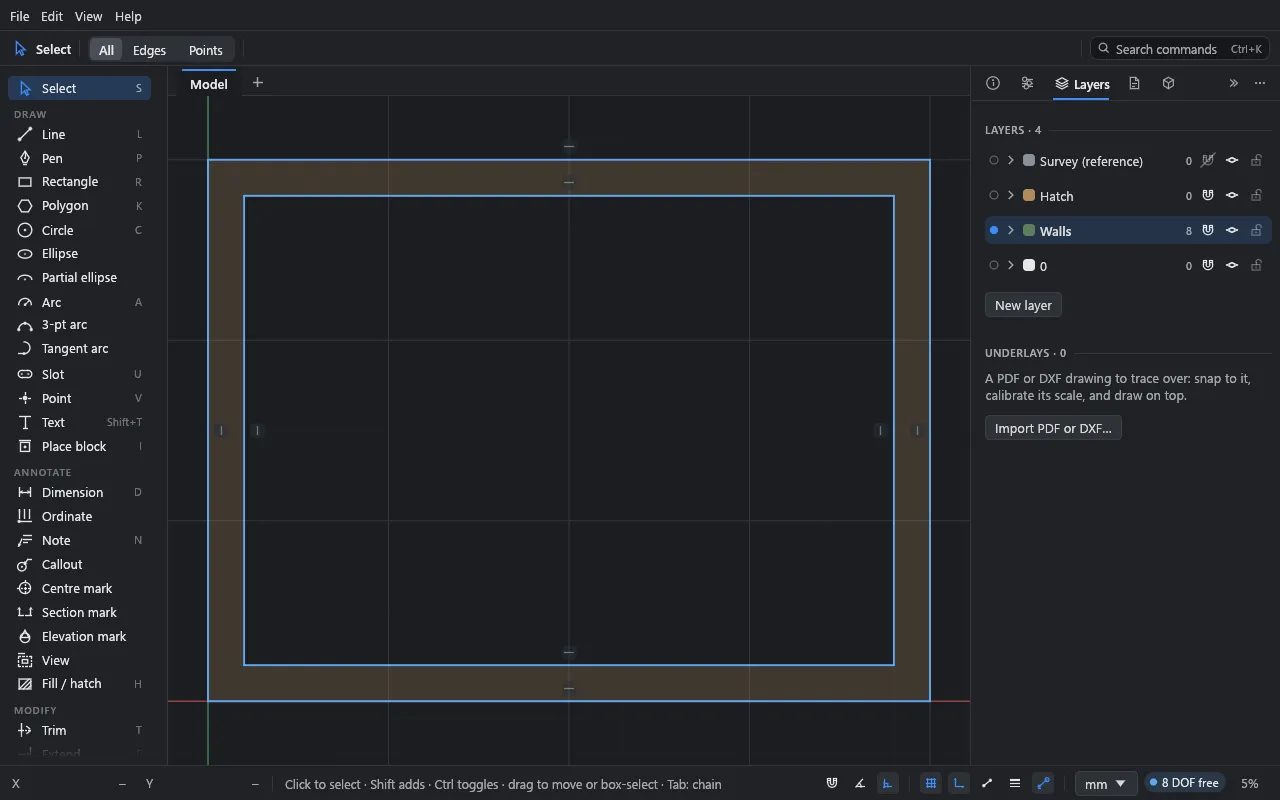
- Each layer is a row: a dot, its colour, name, the number of curves on it, and snap, show and lock switches. The filled dot and highlighted row mark the current layer, where new geometry goes. Click anywhere on a row to make that layer current; double-click the name to rename it.
- The list reads top down as the layers stack: the top layer draws over the ones below it, on the canvas and in output. Drag a row up or down to change the order; a line shows where it will go. New layers start at the top, and layer 0 starts at the bottom.
- The magnet switch turns snapping to a layer’s geometry off or on. With it off, the pointer doesn’t snap to that layer (or to block copies on it), but you can still pick and edit its geometry. Use it for busy reference layers you’re drawing over.
- Click a row’s arrow (Colours and line settings) to open it: Stroke colour (Auto is black or white to suit the theme), Fill colour (Same as stroke by default), Line weight and type, Output (Printed and exported), Select all, Move here and Delete (its geometry moves to layer 0).
- Right-click a row to select its curves or move the selection there.
- + New layer adds a layer and makes it current. Move selection here moves what’s picked to the current layer.
- Layer 0 always exists and can’t be deleted.
Hidden layers aren’t drawn, picked or snapped to, but their geometry still solves. Locked layers are drawn and can be snapped to and dimensioned against, but not picked; the solver holds their geometry still. A hatch or area whose outline is on a locked layer can’t be moved, turned or scaled either: Drift says the layer is locked.
The Underlays section, below the layers, lists the drawing’s underlays. See Underlays and DXF import.
Geometry takes its colour, weight and line type from its layer unless you set them on the geometry itself (in the Inspector, or the top bar’s Stroke menus).
Sheets
- Sheets: the drawing’s sheets, by number and name, in print order (click one to show it, drag one to reorder, right-click to duplicate, move or delete it), New sheet, and Add view for the sheet shown.
- Views: every view in the drawing and the sheets it’s on. Drag one onto the sheet, or use Place on sheet, Zoom to view or Delete view.
- Output: PDF…, SVG…, DXF… and Print…. With several sheets, PDF… and Print… ask which sheets to include.
A sheet’s own settings (number, name, paper, title block, revisions, Delete sheet) and a placed view’s (title, scale, frame, what it shows, alignment, Remove from sheet) are in the Inspector: pick bare paper, or the view, on the sheet. See Sheets and output.
Blocks
- New block (a name and Make), when something is picked.
- A search field, over the drawing’s blocks and the whole library.
- In the drawing: the drawing’s blocks, a thumbnail of each and how many copies are placed. Click a block to place copies; right-click it to rename it, select its copies or delete it. Purge unused deletes the blocks with no copies.
- Library: a category (Doors, Windows, Kitchen, Bath, Furniture, Laundry and utility, or all of them), its families and their sizes as tiles. Click a tile to add that block (once) and place copies; a tile already in the drawing is outlined. Add all adds every block shown without placing them.
See Blocks.